
First run
This walkthrough runs the demo spec that ships with Reverie. It uses the public practice site the-internet.herokuapp.com, needs no sign-in, and changes nothing on the site. Finish Installation first.
The demo spec (examples/specs/demo-controls.md) has three steps: pick an option in a dropdown, make sure two checkboxes are checked, and wait for a page that loads late.
Run these commands from the Reverie clone, or copy the spec into your own project.
Set your OpenRouter key first. It covers the default Jev decision engine, the pilot, and the text model:
export OPENROUTER_API_KEY=your-openrouter-key # or put it in a .env fileWithout a key, start refuses to run and tells you what to set. To decide locally and offline instead, use Laya (laya.cpp or MLX): REVERIE_DECISION_ENGINE=laya. See Models and providers.
1. Create the project folder
Section titled “1. Create the project folder”uv run reverie initThis creates a .reverie/ directory with runs/, specs/, a README, and a .gitignore. It is safe to run again; it only creates what is missing. Reverie also creates .reverie/ when it first needs it, so this step is optional.
2. Start a session
Section titled “2. Start a session”uv run reverie --session demo start --url https://the-internet.herokuapp.com/A browser window opens. The command prints the session state, such as status: ready, plus the page url and title. --session demo names the session; each name gets its own browser. Without --session, the name is default.
3. Load the spec
Section titled “3. Load the spec”uv run reverie --session demo spec examples/specs/demo-controls.mdThe steps in the spec become the plan. The command prints the test title and its steps, all still pending.
4. Start the pilot
Section titled “4. Start the pilot”uv run reverie --session demo pilotThe pilot runs in the background and the command returns at once:
pilot started; follow with: reverie --session demo events --since 61 -fWatch the browser window. A caption at the bottom narrates each action. To stream the log in your terminal, run the events command the pilot printed.
5. Check progress
Section titled “5. Check progress”uv run reverie --session demo progress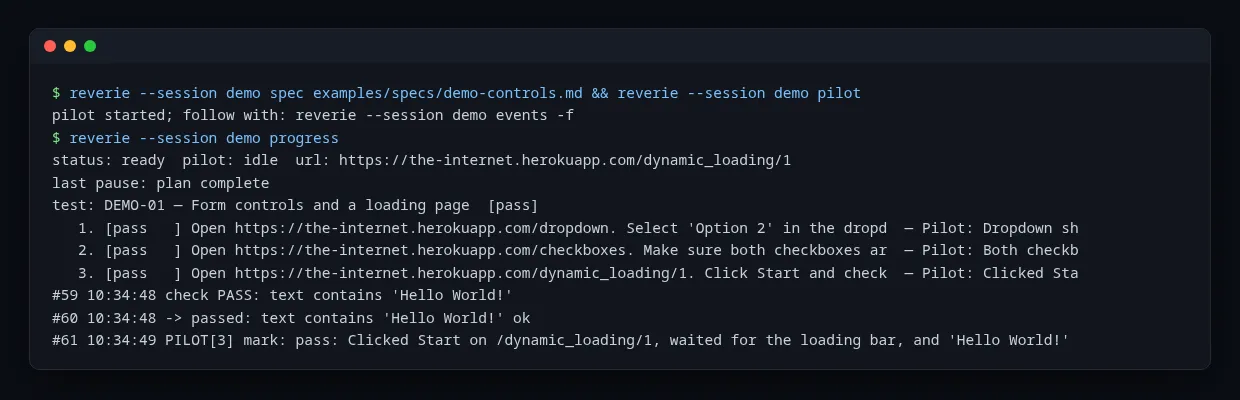
Here is how to read each line.
| Line | Meaning |
|---|---|
status: ready pilot: idle url: ... |
The session is ready, the pilot is not running, and this is the page the browser is on. While the pilot works, you see pilot: running. |
last pause: plan complete |
Why the pilot last stopped. plan complete means every step has a result. Other reasons include admin (a checkpoint needs you), stuck, step N blocked, and stopped by the orchestrator. |
test: DEMO-01 ... [pass] |
The spec title and the overall result: running, pass, fail, or blocked. |
1. [pass ] Open ... |
One plan step with its status and the pilot’s note. Statuses are pending, running, pass, fail, blocked, and skipped. |
FINDING ... |
If the pilot records a problem, it appears under its step with a severity. |
checkpoint <id> waiting: ... |
Work the pilot needs from you. See Running specs. |
#59 10:34:48 check PASS: ... |
The last events. #59 is the event number, then the time, then what happened. |
#60 ... -> passed: ... |
The outcome of the pilot’s operation just above it. |
#61 ... PILOT[3] mark: pass: ... |
The pilot marked step 3 as passed and wrote its reason. |
6. Review the run
Section titled “6. Review the run”uv run reverie uiThis opens the run dashboard in your default browser. It prints its address, usually http://127.0.0.1:7788/. Pick the run on the left and step through the frames. See Runs and dashboard.
7. Stop the session
Section titled “7. Stop the session”uv run reverie --session demo stopThis closes the browser window and ends the session. The run stays on disk in .reverie/runs/, and the dashboard keeps showing it.
Next steps
Section titled “Next steps”- Learn the vocabulary in Concepts.
- Write your own tests in Writing specs.
- Try the other ways to drive a session in Examples.